
Telegram Desktop for Windows 10 and 11: install Telegram Desktop on any PC
Telegram Desktop for Windows delivers the full messenger experience on 10 and 11 - complete with keyboard shortcuts, native notifications, and seamless cloud sync with your phone. This page hosts the signed installer and everything you need to install, configure, or troubleshoot the client.
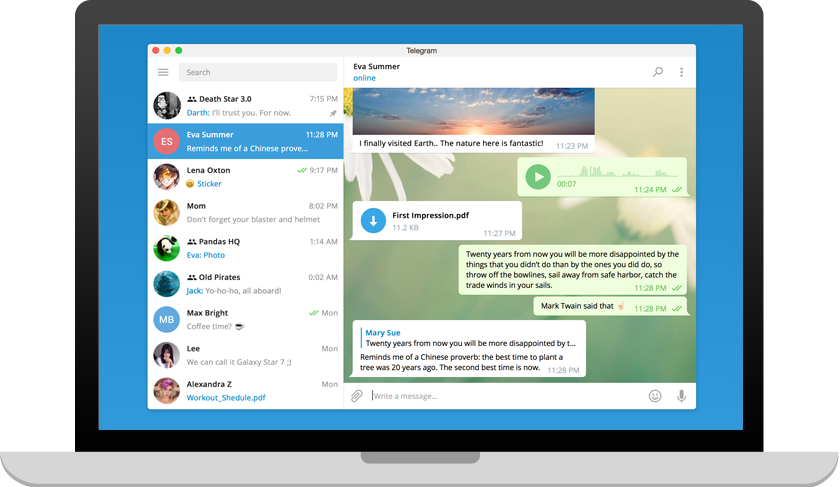
Signed tsetup installer for Windows 10 and 11
Streams from the closest Telegram distribution mirror over TLS 1.3. Supports silent installs, per-user installs, and ARM64 laptops.
- Type
- tsetup .exe
- Signature
- Telegram Messenger Inc.
- Update channel
- Stable
Delivered through region-aware mirrors. Files are streamed directly from the official Telegram build system.
System requirements for Telegram Desktop on Windows
OS
Windows 10 (1809) or Windows 11
Architecture
x64, ARM64
Disk space
~180 MB installed
Memory
2 GB RAM recommended
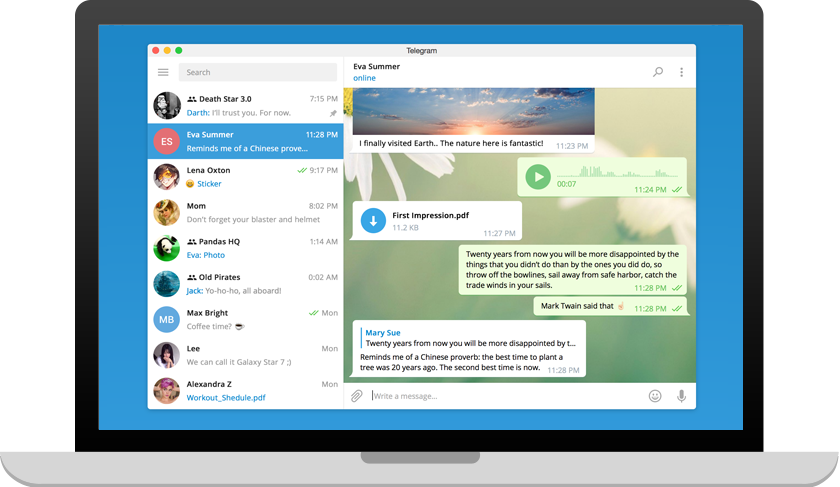
Install Telegram on Windows in four steps
- 1
Download the tsetup installer
Click the download button on this page. A signed .exe stream starts from the nearest Telegram distribution mirror.
- 2
Run the installer
Open the file after the download completes. Approve the User Account Control prompt so the installer can register components.
- 3
Sign in with a phone number
Enter your international phone number, confirm the SMS or Telegram code, and set up an optional cloud password.
- 4
Enable auto-start (optional)
Open Settings > Advanced > Launch Telegram on system start to keep the desktop client always online.
Windows-only shortcuts and quality-of-life tricks
The Windows build ships extra keyboard automation because it is built for long typing sessions. Enable Advanced > Global media key handler to control voice messages while gaming.
- Ctrl + KOpen the global search overlay
- Ctrl + NStart a new message thread
- Ctrl + Shift + MMute the active chat
- Ctrl + ,Open Settings
- Ctrl + TabCycle through chat folders
Update strategy
Telegram Desktop performs background delta updates during idle time. If your corporate firewall blocks the update endpoint, schedule a monthly reinstall using the installer on this page - the fresh binary carries the current signing certificate and the matching build fingerprint.
- - Enable Settings > Advanced > Ask before quit to avoid stopping updates.
- - Corporate machines can pin a WSUS-friendly install path with `/quiet` flags.
- - Rolling back a beta is safe: sign in again and the cloud history reappears.
Frequently asked questions about Telegram Desktop
+Does Telegram Desktop work on Windows on ARM devices?
Yes. The installer detects ARM64 laptops such as Surface Pro X and Copilot+ PCs and installs the native binary for the best battery efficiency.
+Can I run Telegram Desktop portably from a USB stick?
Advanced users can copy the tsetup output folder to portable storage. Sign-in tokens live inside the folder so you can carry the profile between machines.
+How do I keep Telegram Desktop up to date?
Automatic updates run in the background when the app is open. You can force an update from Settings > Advanced > Check for updates.
+Why is Windows SmartScreen warning me?
SmartScreen sometimes shows a caution for freshly built installers until enough reputation is accumulated. Verify the file signature is issued to Telegram Messenger Inc., then click More info > Run anyway.
Prefer a different device?
Every platform has its own tailored guide. Compare the editions or jump directly to another build.